Tasks and Subtasks
Tasks and subtasks are the foundation of effective project management with an online Gantt chart. In Instagantt, they allow you to break projects into actionable work units, define dependencies, track progress, and manage schedules with precision. Understanding how tasks, subtasks, parent tasks, and task movement work together is essential for accurate project planning, scheduling, and execution.
🧭 Table of Contents
- What Are Tasks and Subtasks in Instagantt?
- How Parent (Summary) Tasks and Subtasks Work
- How to Create Tasks and Subtasks
- How to Move Tasks and Edit Task Dates
- How to Remove Dates from Tasks
- Who Can Create and Edit Tasks and Subtasks
- Best Practices for Using Tasks and Subtasks
- Summary
- Frequently Asked Questions (FAQ)
📝 What Are Tasks and Subtasks in Instagantt?
In Instagantt, tasks represent individual work items in your Gantt chart project, while subtasks allow you to break those tasks into smaller, more manageable pieces. This structure enables more accurate work breakdown, better resource planning, and clearer progress tracking across your entire project schedule.
Tasks and subtasks appear both in the task list and directly on the Gantt chart timeline, making it easy to visualize deadlines, dependencies, and workload distribution in real time using a true visual task management system.
🧩 How Parent (Summary) Tasks and Subtasks Work
When a task contains one or more subtasks, it becomes a parent task (also known as a summary task). Parent tasks behave differently from regular tasks in several important ways:
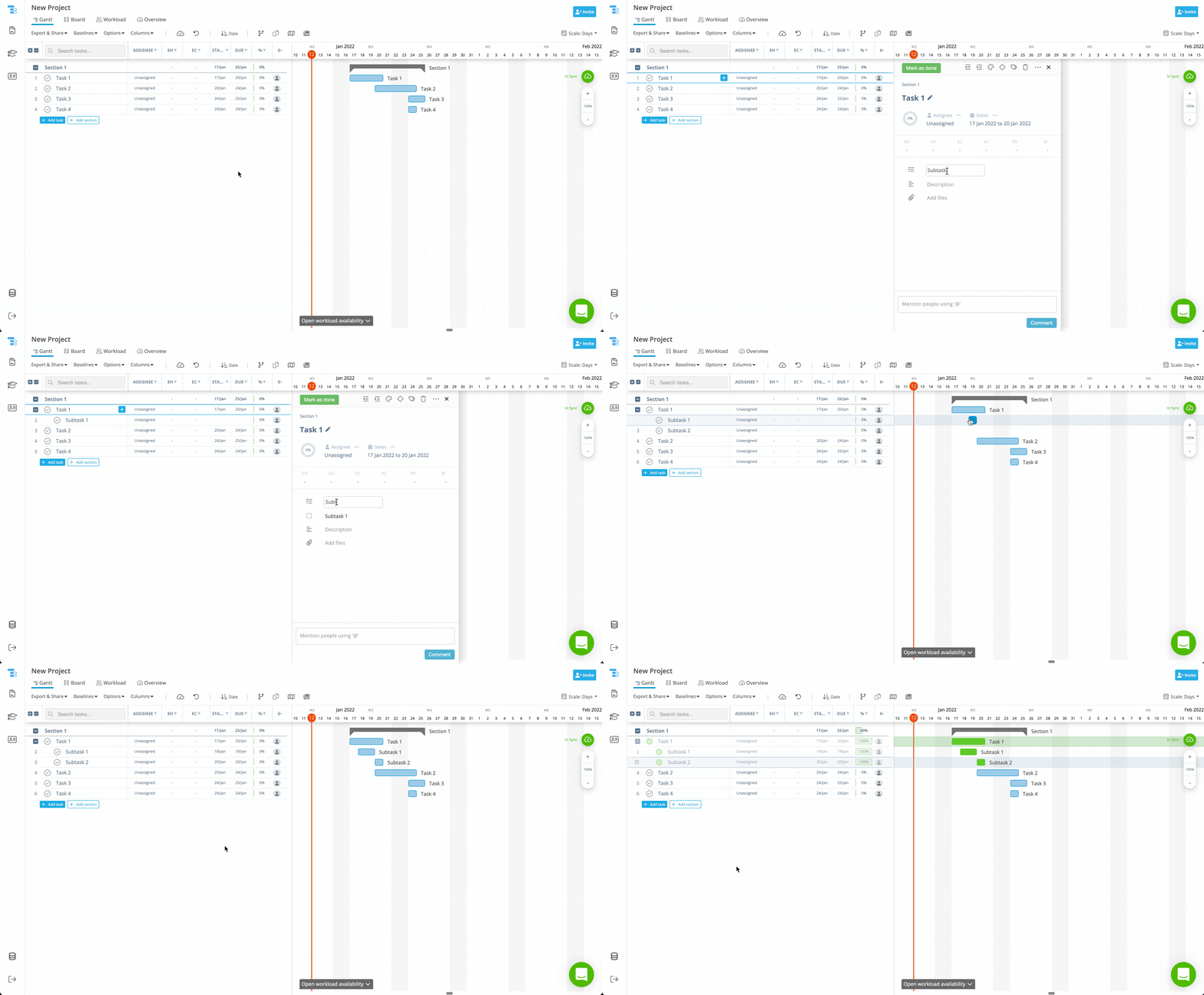
By default, subtasks drive the dates of the parent task. This means the parent task’s start and end dates are automatically calculated based on the earliest start and latest end of its subtasks. Visually, this inherited duration is represented by a bracket on the Gantt chart — only parent tasks and sections have brackets. Regular tasks display only a standard bar.
However, if a task already had its own dates before being converted into a parent task, those original dates are preserved. In this case, you will see a white bar underneath the bracket, representing the task’s original manually assigned dates, while the bracket still reflects the subtask-driven duration.
This behavior is essential to understand for accurate Gantt chart scheduling and summary task management.
➕ How to Create Tasks and Subtasks
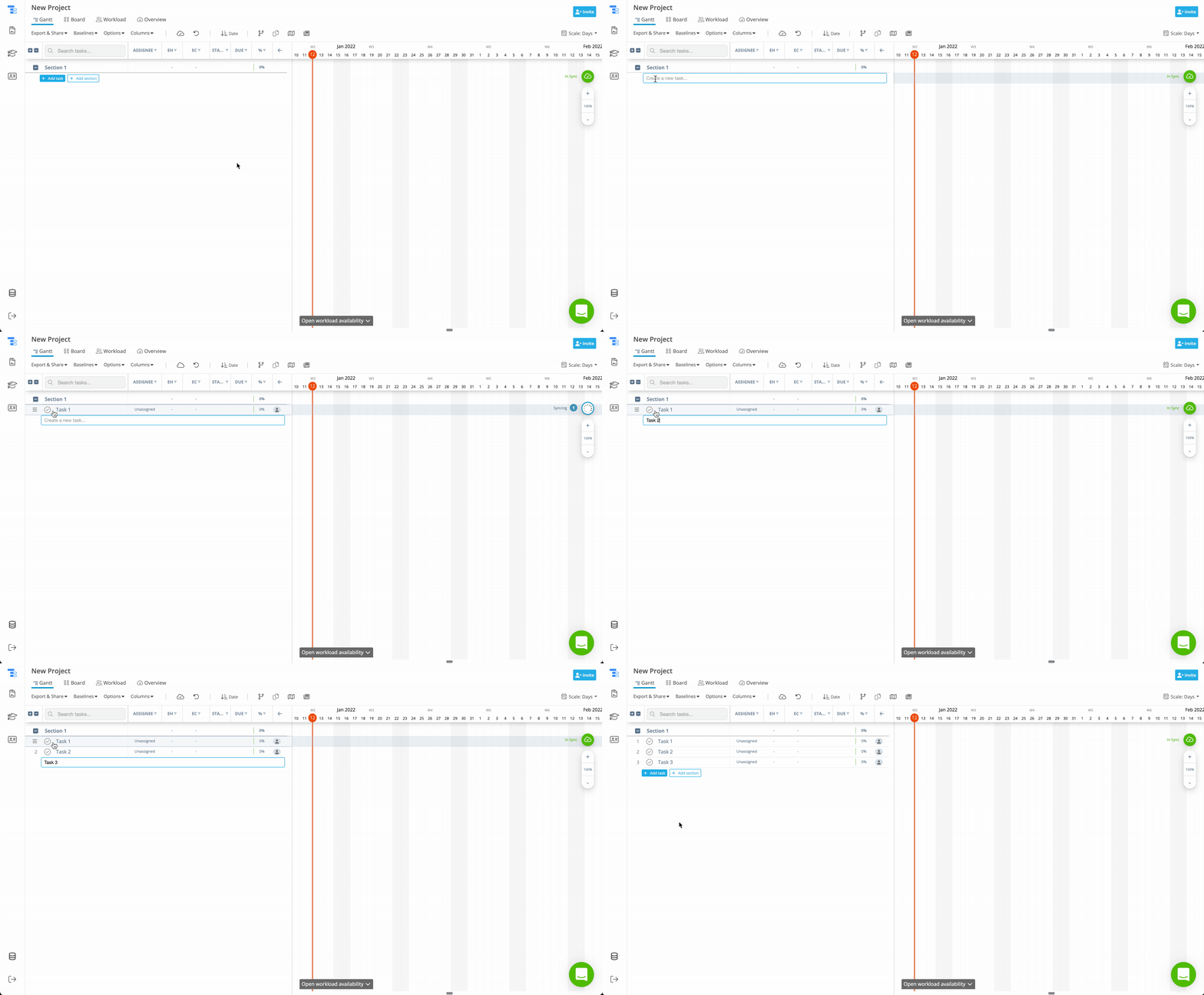
You can create new tasks directly inside any section of your project. Every new blank project includes at least one default section (usually named Section 1), where you’ll find the Add Task and Add Section buttons. In short:
- Locate the section where you want to add the tasks.
- Click Add Task.
- Type the name of the task and press enter to create it. Repeat this step for as many tasks as needed.
- Schedule the tasks with drag and drop or by using the Date columns.
To create a subtask, there are a few options:
- Simply indent an existing task beneath another task. The indented task automatically becomes a subtask, and the main task becomes a parent task.
- Click the blue "New subtask" button that appears to the right of the task name and type the name of the subtask.
- Click the task to open the task details panel. Click New Subtask and type the name of the subtask.
This parent-child hierarchy allows you to build structured project schedules, organize work into phases, deliverables, or sprints, and manage complex task breakdown structures with clarity.
🔀 How to Move Tasks and Edit Task Dates
Instagantt offers two main ways to move tasks and adjust task dates inside your online Gantt chart:
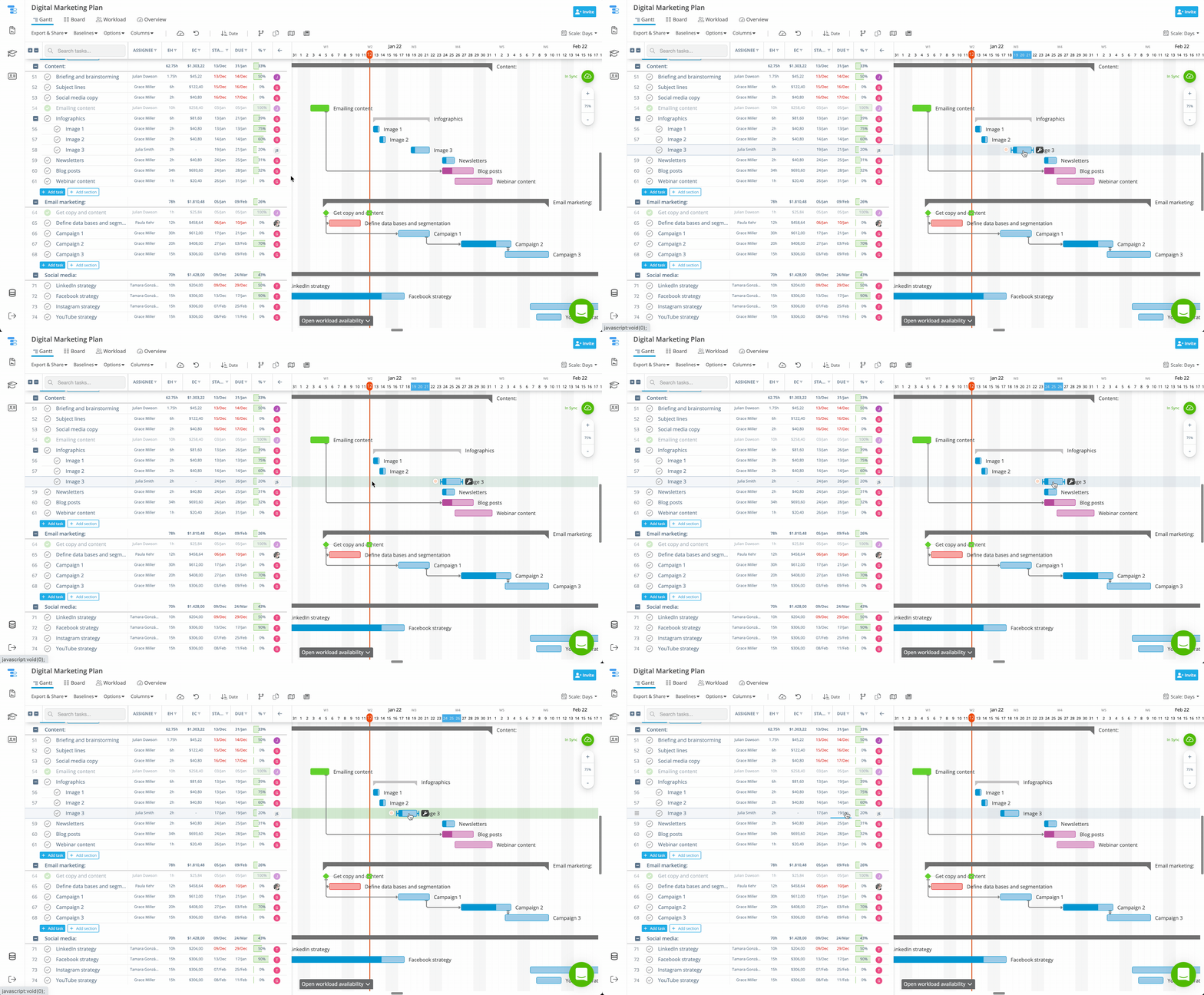
🖱 Drag & Drop on the Gantt Chart
You can move a task directly on the timeline by clicking and dragging its bar left or right. This shifts both the start and end dates simultaneously, making it ideal for fast schedule adjustments and timeline rebalancing during active project execution.
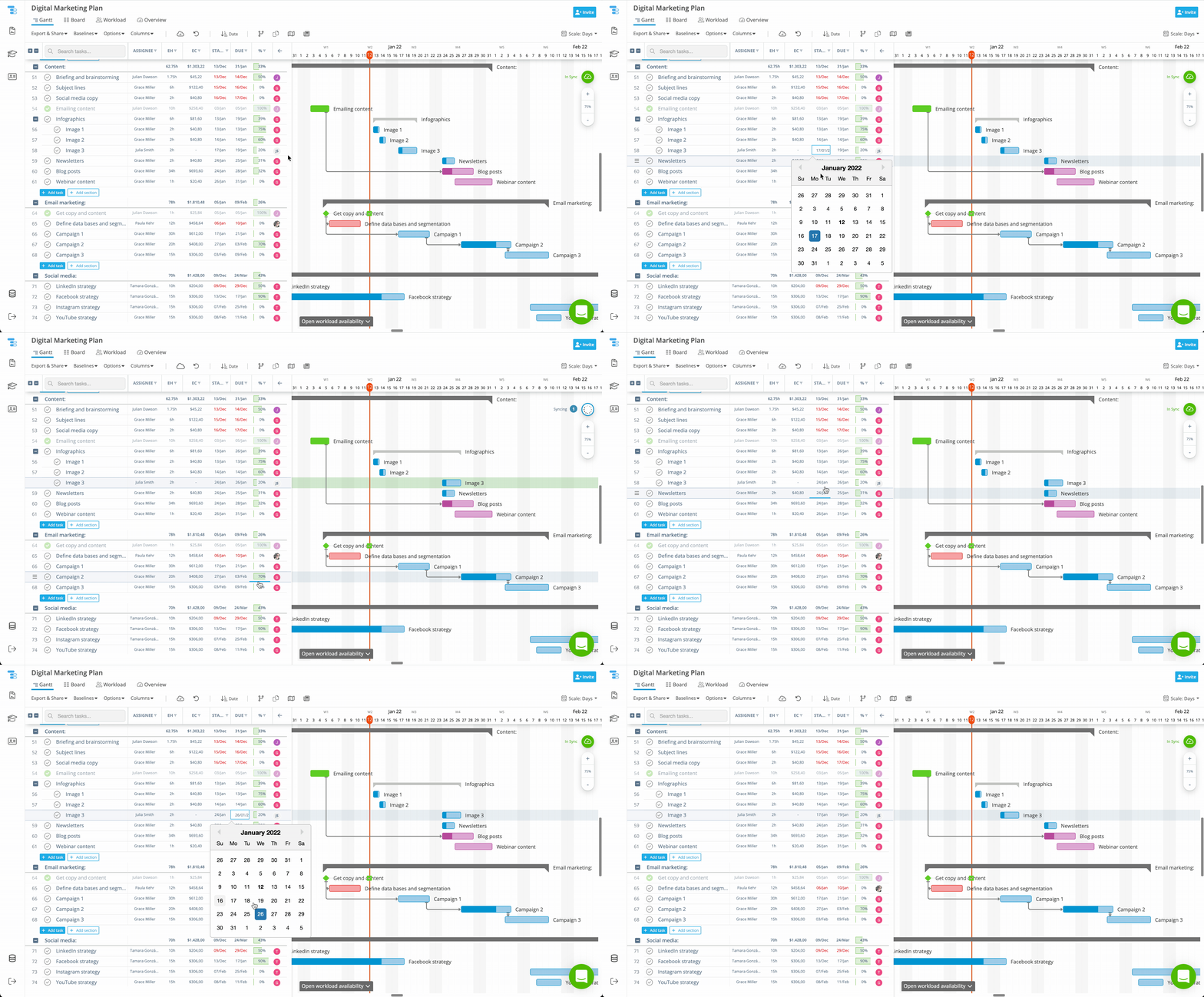
📅 Manual Date Editing
You can also edit task dates manually using the task’s date fields. This method is useful when you need precise date control, such as aligning tasks to contractual deadlines or fixed milestones.
Both methods work together to give you full flexibility when managing project timelines, dependencies, and delivery schedules.
🛠 How to Remove Dates from Tasks in Instagantt
In Instagantt, you can remove manually assigned start and end dates from any task, whether it’s a regular task or a parent (summary) task. This is especially useful when you want a task to be driven again by dependencies, subtasks, or automatic scheduling logic instead of fixed manual dates.
There are two ways to remove dates from a task:
- Hover over the task directly on the Gantt chart, click the wrench icon next to the task bar or bracket and select Remove dates.
- Click the task to open the task details panel, click the three dots menu next to the Dates field and select Remove dates.
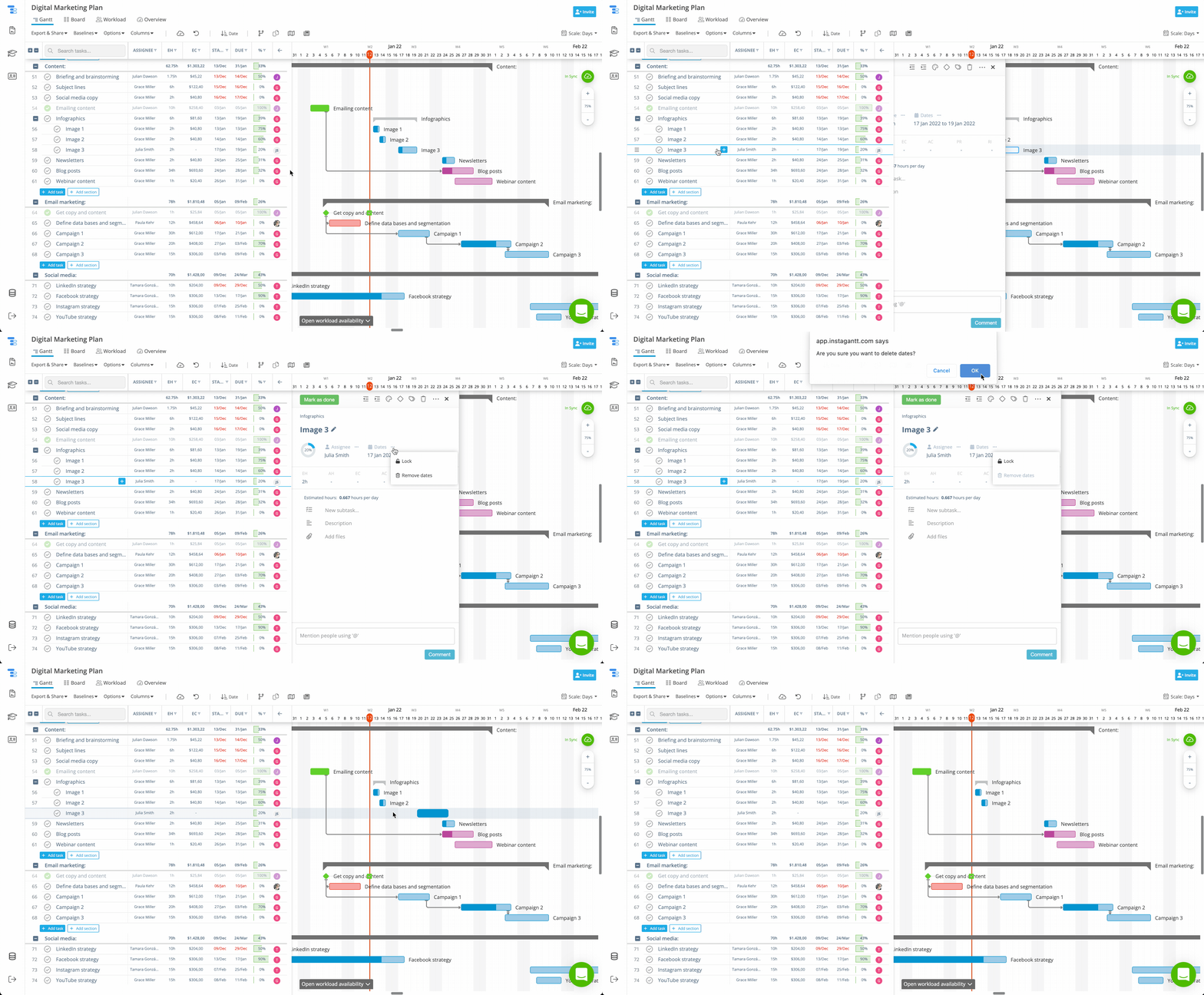
This action removes only the manually assigned dates. If the task is a parent task, the dates inherited from its subtasks will remain intact, allowing the parent task to continue being automatically scheduled.
This feature is essential for maintaining clean, flexible, and fully automated project scheduling inside your online Gantt chart.
👥 Who Can Create and Edit Tasks and Subtasks
Any user with access to a project can create, edit, move, and delete tasks and subtasks. There are no extra permission layers at the task level — collaboration is fully enabled across all project members to support real-time team planning and execution.
✅ Best Practices for Using Tasks and Subtasks
Using tasks and subtasks strategically improves both visibility and control in your project management workflow. Some proven best practices include:
Structuring tasks by phases, sprints, departments, or deliverables helps teams stay aligned around clear execution steps. Subtasks are especially useful for breaking complex work into measurable actions that can be tracked independently.
Relying on parent tasks driven by subtasks ensures that high-level timelines remain accurate as work evolves. Combining this with drag-and-drop scheduling allows you to respond quickly to changes without losing control of your overall project plan.
📌 Summary
Tasks and subtasks are the backbone of structured Gantt chart project management in Instagantt. By combining task hierarchies, parent (summary) task automation, flexible date editing, and visual scheduling, you gain full control over project execution from high-level planning to daily delivery.
🚀 Take Control of Your Project Schedules with Tasks & Subtasks
Use tasks, subtasks, and parent tasks in Instagantt to transform complex plans into clear, actionable timelines. Start building smarter online Gantt charts, optimize your project scheduling, and keep every deliverable on track.
❓ Frequently Asked Questions (FAQ)
What is the difference between a task and a subtask?
A task is a standalone unit of work, while a subtask is a nested task that belongs to a parent task and helps break complex work into smaller steps.
Do subtasks control the parent task’s dates?
Yes. By default, subtasks define the parent task’s duration automatically. The start date of the parent task will be the earliest date among the subtasks' start dates, and the due date will be the latest date among the subtasks' due dates.
Why do I see a white bar under some parent task brackets?
This indicates the parent task still has its original manually assigned dates in addition to the subtask-driven dates.
Can I remove those original dates without deleting the task?
Yes. Use the Remove dates option from the task’s wrench menu.
What are the two ways to move a task in Instagantt?
You can move tasks by dragging them on the Gantt chart or by manually editing their dates.