Spreadsheet Exports
Exporting your Gantt chart to Excel allows you to take your project data outside Instagantt, making it easier to share, analyze, and report on your work. Whether you need a spreadsheet for stakeholders, offline editing, or deeper analysis, exporting supports more flexible gantt chart planning and project management workflows.
🧭 Table of Contents
- What Does Exporting to Excel Do?
- How to Export a Gantt Chart to Excel
- What’s Included in the Excel Export
- Exporting Workload Data
- When Exporting to Excel Is Useful
- Summary
- Frequently Asked Questions (FAQ)
🧠 What Does Exporting to Excel Do?
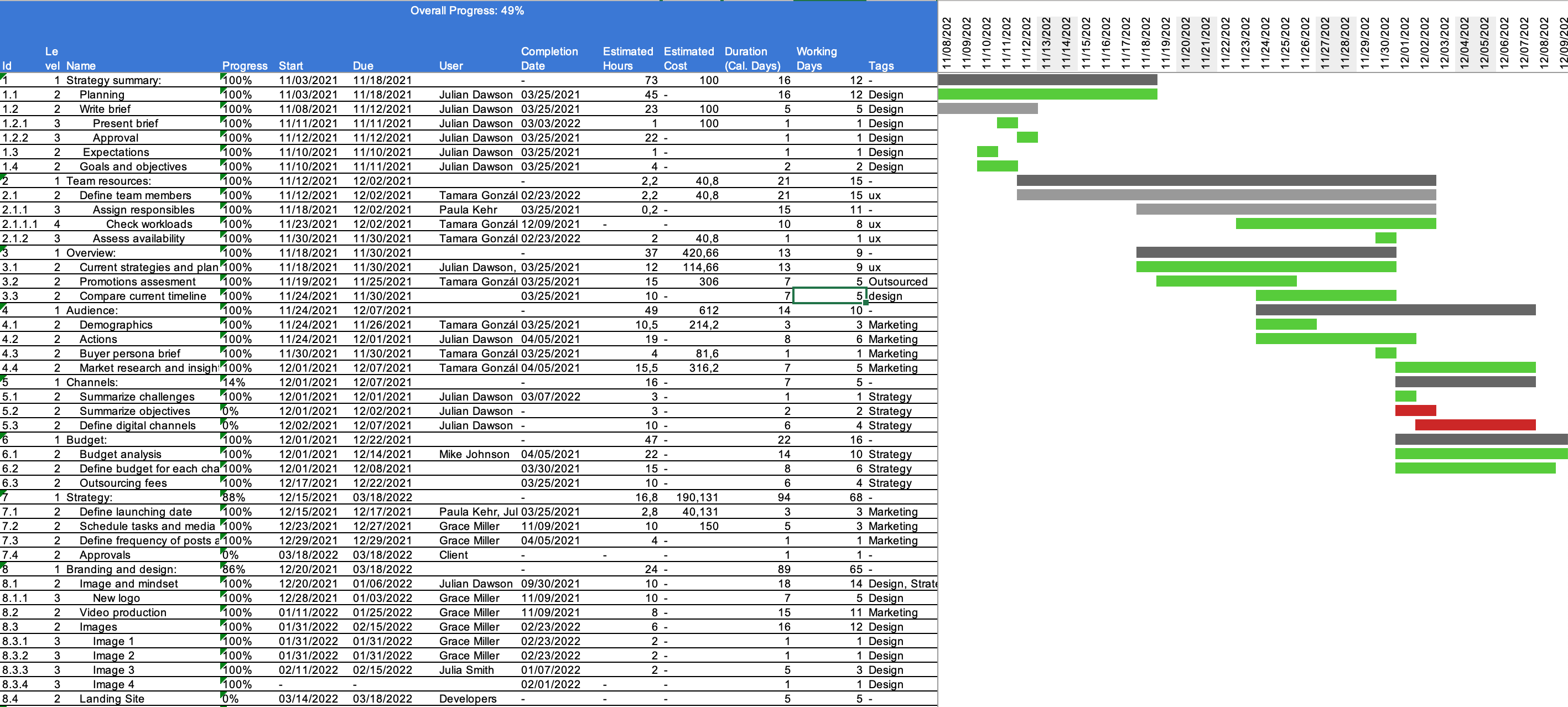
When you export a Gantt chart to Excel, Instagantt generates a spreadsheet that includes both your task list data and a visual representation of the Gantt timeline, including task bars and dates.
This makes Excel exports ideal for reporting, collaboration with external stakeholders, and working with project data in environments where a spreadsheet is required.
⬇️ How to Export a Gantt Chart to Excel
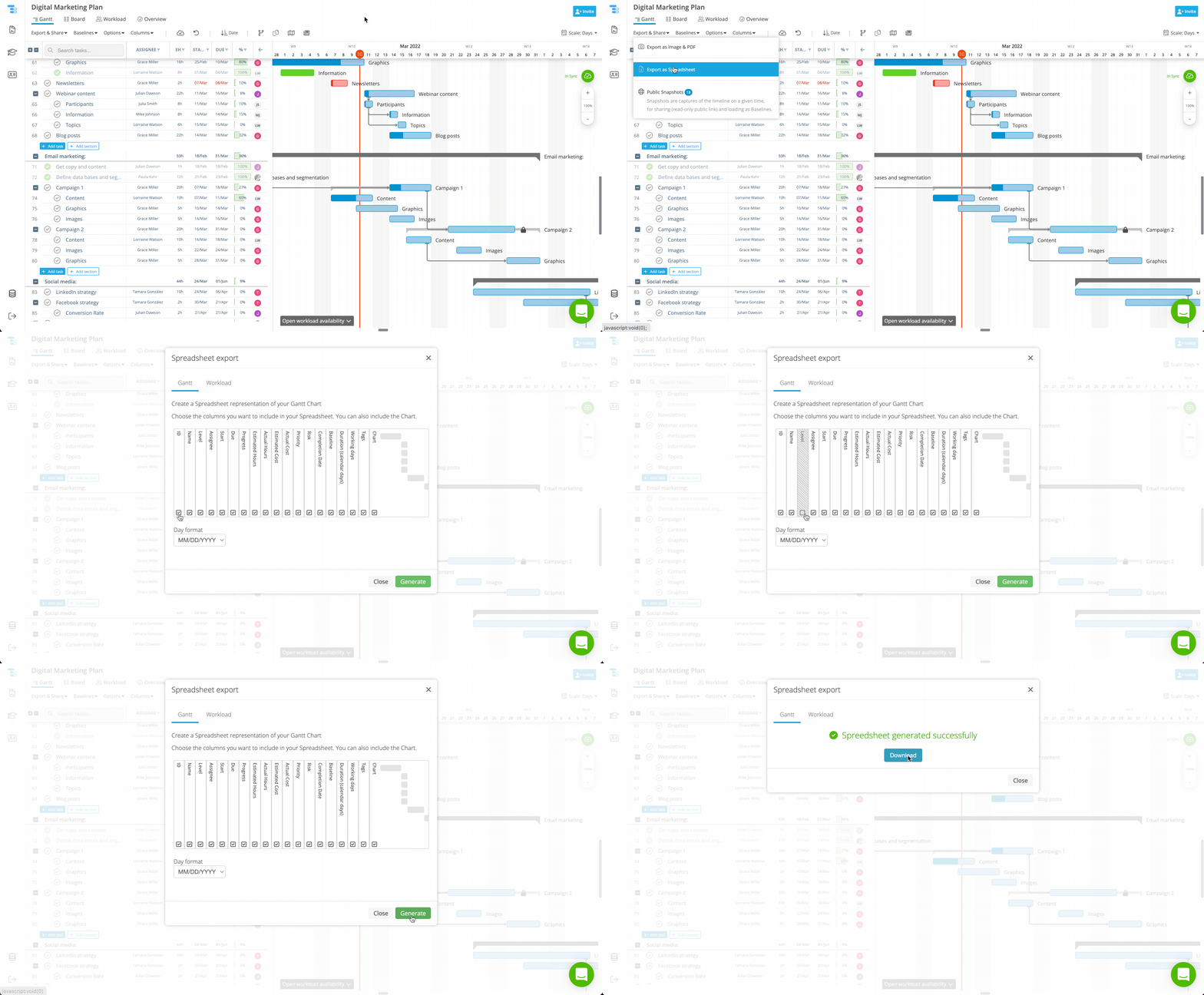
To export your Gantt chart as an Excel file:
- Open your project in Instagantt
- Click Export & Share at the top of the project
- Select Export as Spreadsheet
- Choose Gantt chart as the export type
- Select the columns you want to include
- Click Generate
- Once processing finishes, click Download
The system will generate an Excel file based on your current chart configuration.
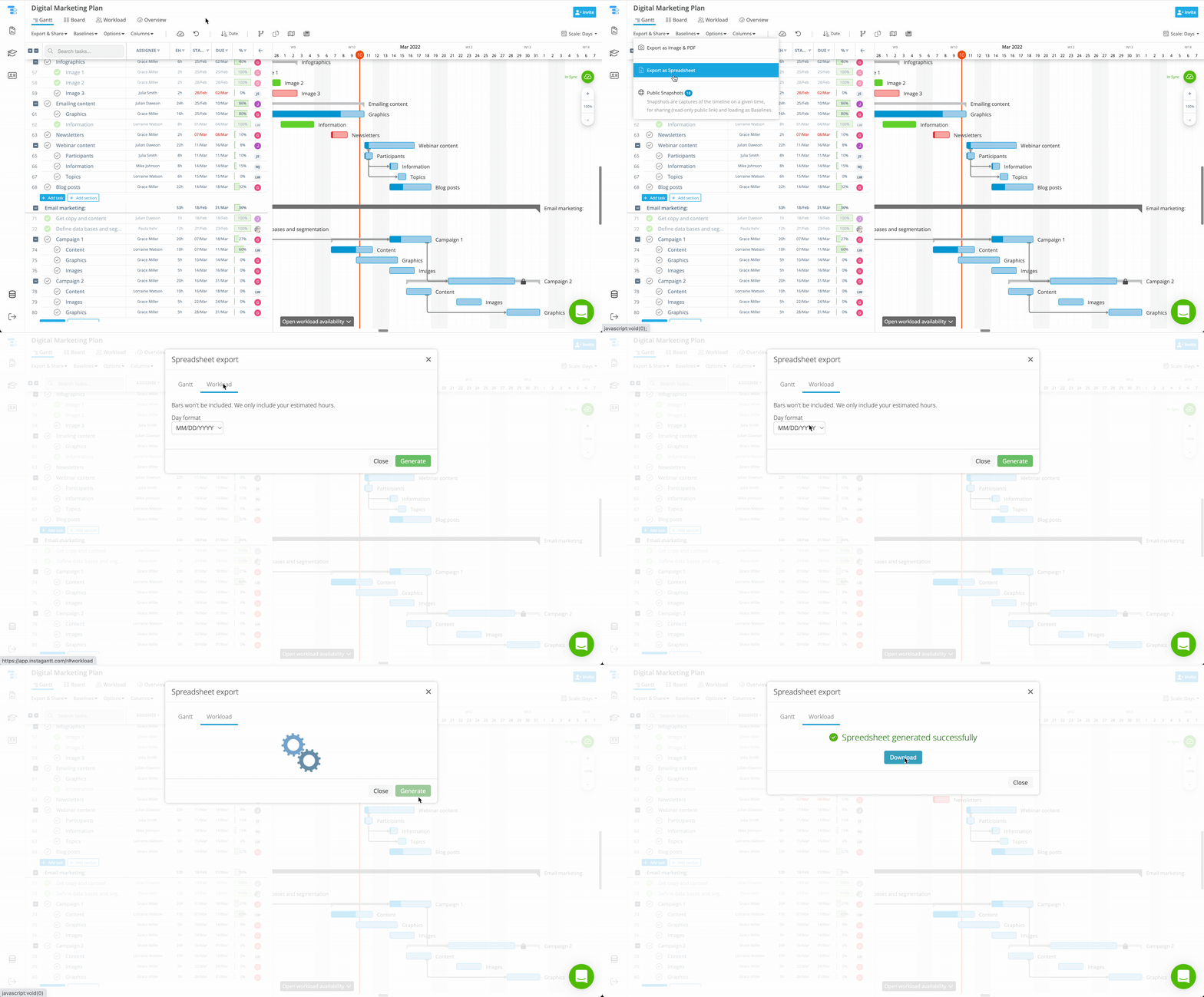
As an alternative, you can follow the same export flow but select Workload at the top of the export options instead of Gantt chart. This will generate a workload export focused on estimated hours and resource allocation, without requiring you to repeat the export steps.
📄 What’s Included in the Excel Export
Your exported Excel file can include:
- Task and subtask names
- Start dates and due dates
- Durations and dependencies
- Baselines
- Assigned users and resources
- Any enabled columns visible on the chart
- A visual Gantt timeline aligned with the task rows
The export reflects the structure and hierarchy of your project, making it easy to understand task relationships and scheduling logic outside Instagantt.
👥 Exporting Workload Data
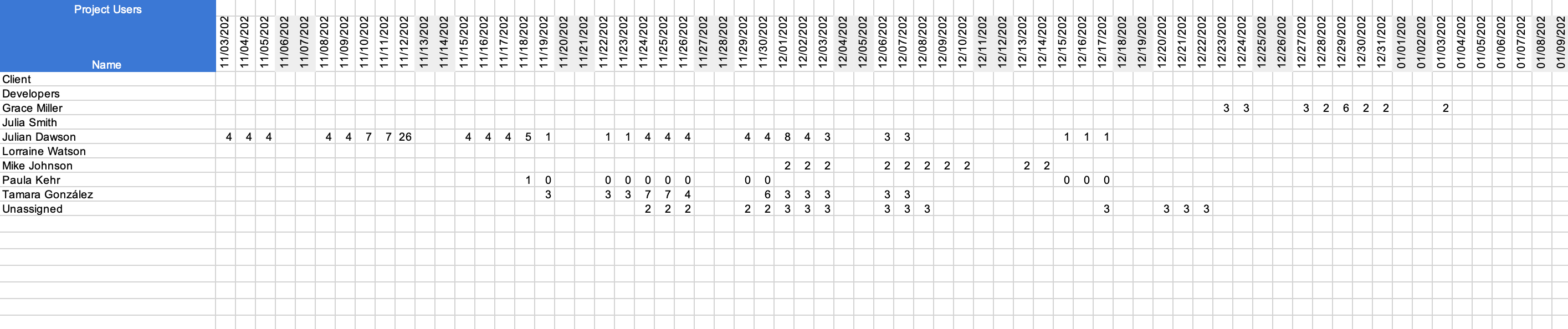
In addition to Gantt charts, Instagantt allows you to export Workload spreadsheets.
These spreadsheets focus on estimated hours per user or resource, helping teams analyze capacity, effort distribution, and workload balance across the project.
This is especially useful for teams managing resources in detail or preparing reports related to staffing and effort allocation.
💡 When Exporting to Excel Is Useful
Exporting your Gantt chart to Excel is particularly helpful when:
- Sharing project plans with stakeholders who prefer spreadsheets
- Creating custom reports or summaries
- Reviewing project data offline
- Archiving project snapshots
- Supporting budgeting, forecasting, or audits
By combining visual timelines with structured data, Excel exports extend the value of your gantt software beyond the chart itself.
📌 Summary
Exporting Gantt charts to Excel gives you a powerful way to reuse and share your project data. With both task details and visual timelines included, Excel exports support reporting, collaboration, and deeper analysis while keeping your gantt chart planning consistent and accessible.
🚀 Take Your Gantt Data Further
Export your Gantt chart to Excel and turn your project plan into a flexible, shareable report that works wherever your team needs it.
❓ Frequently Asked Questions (FAQ)
Does the Excel export include the Gantt chart bars?
Yes. The exported spreadsheet includes both task data and a visual representation of the Gantt timeline if the user chooses to include it in the set up dialog of the export.
Can I choose which columns are included in the export?
Yes. You can select exactly which columns to include before generating the spreadsheet.
Can I export workload information to Excel?
Yes. Instagantt supports exporting workload spreadsheets with estimated hours per user or resource.
Does exporting affect my project data?
No. Exporting creates a copy of your data and does not modify your project in Instagantt.
Can I export a spreadsheet in weeks, months or quarters?
No. Spreadsheet exports are always generated in days to have one cell per day to draw the Gantt chart bars correctly.