Workload View
Manage Your Team Capacity
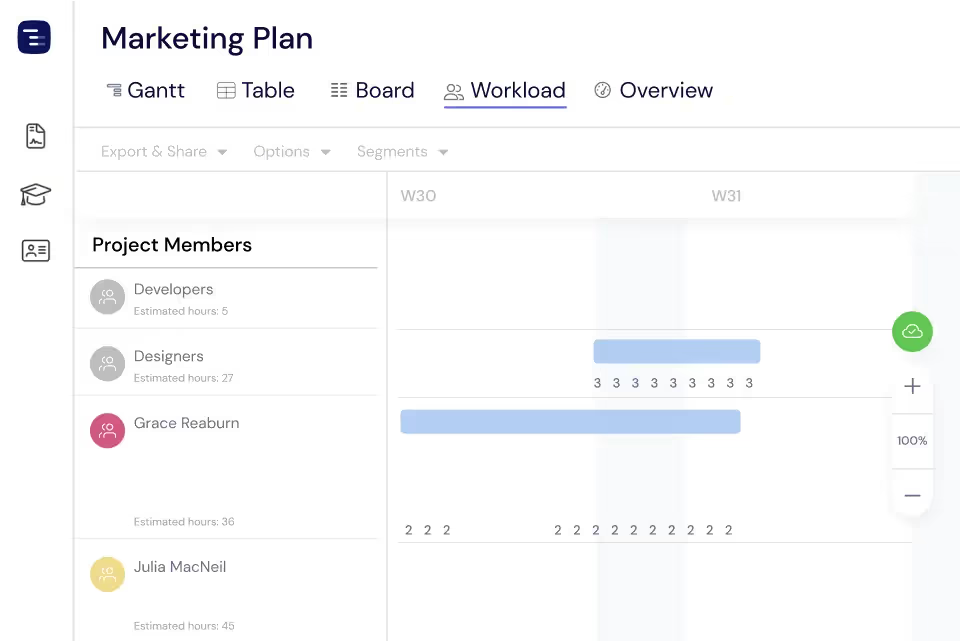
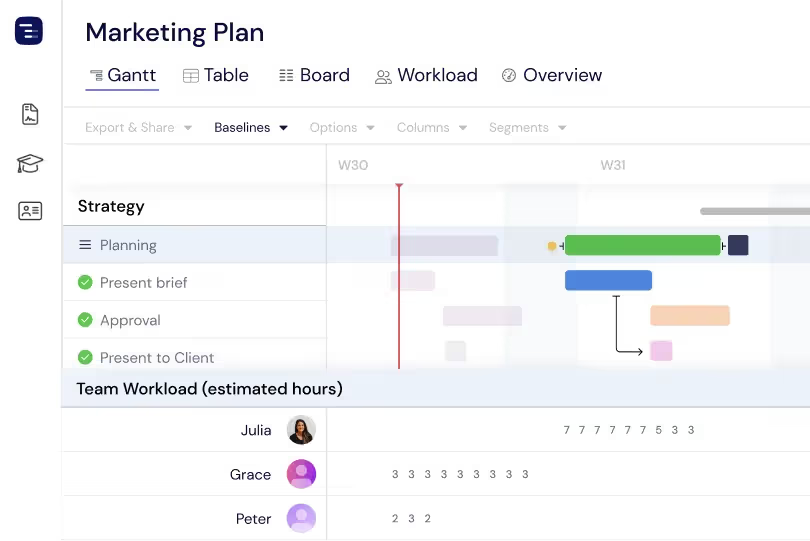
Instagantt's Workload View visualizes each team member's capacity and task assignments across all your projects on a single timeline. Identify who is overallocated, who has bandwidth, and redistribute work before bottlenecks form. Color-coded indicators make capacity planning visual and actionable.





Trusted by 25,000+ Teams across the Globe
Check Workload Across All Projects
See every team member's workload across all projects in a single unified view that eliminates the guesswork from resource management. Quickly spot who has room for more work and who is stretched too thin by scanning color-coded capacity indicators. The cross-project view is essential for organizations where team members contribute to multiple projects simultaneously — it reveals conflicts and overlaps that are invisible when viewing each project in isolation.
Real-Time Overload Alerts
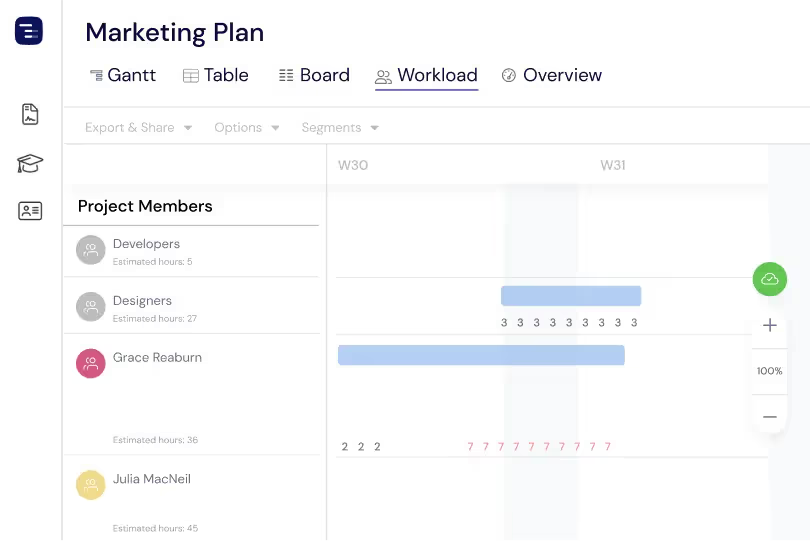
Get instant visual alerts when a team member is overallocated based on their defined capacity limits. Instagantt highlights overloaded days and weeks with clear color indicators so you can redistribute tasks proactively. The alert system considers all project assignments, not just the current project, giving you a complete picture of each person's commitments. Rebalance assignments with drag-and-drop to keep your team productive and healthy.
Plan Around Time Off and Availability
Set vacations, holidays, sick days, part-time schedules, and recurring unavailable periods for each team member. The Workload View automatically adjusts available capacity when someone is away, preventing you from accidentally scheduling critical work during their absence. See availability gaps at a glance and plan project timelines around them. For teams with members in different countries, set region-specific holiday calendars so capacity calculations reflect actual working days for each person.
Track Effort Estimates vs. Actuals
Compare estimated hours across tasks and team members in the Workload View to understand how work is distributed and plan more effectively. Click any task bar to open its details and review actual hours logged, making it easy to compare planned versus real effort whenever you need to. This workflow helps you spot discrepancies early, refine future estimates, and make smarter decisions about timelines and team capacity.
Cross-Project Resource Allocation
See each team member's commitments across every project they contribute to in a single unified view. The cross-project perspective reveals conflicts that are invisible when viewing each project in isolation — a developer might have capacity within one project but be fully committed when you consider all their assignments. This comprehensive resource visibility helps managers make informed decisions about task assignments, project staffing, and capacity planning across the organization.
Role-Based Capacity Views
Filter the Workload View by column values to focus on specific groups of people — roles, teams, skill sets, or any custom attribute. Save each filter as a Segment so you can return to tailored capacity views instantly, whether you're reviewing engineering bandwidth for an upcoming sprint or checking designer availability next month. These focused workload perspectives make strategic resource planning simpler and help you allocate the right people where they'll have the biggest impact.
Historical Utilization Trends
Review team utilization data over time to identify patterns in capacity management and workload distribution. See which team members are consistently overloaded and which have recurring gaps in their schedules. Historical utilization data helps managers justify hiring decisions with concrete evidence, identify seasonal workload patterns, and ensure fair work distribution across the team. Use these insights to set more realistic capacity targets and build better project timelines based on actual team performance data.
Key Capabilities
Everything you need, nothing you don't.
Team Calendar
See each team member's tasks laid out on a visual timeline calendar that shows exactly what they are working on and when. The calendar aggregates assignments across all projects, giving managers a complete picture of each person's schedule. Identify scheduling conflicts and gaps in availability at a glance. The calendar view is especially valuable during sprint planning and quarterly resource allocation.
Capacity Planning
Set daily hour capacity for each team member and see utilization at a glance. Red color coding for workload numbers means the user is overloaded. This visual capacity indicator makes it easy to identify who can take on more work and who needs tasks reassigned to meet deadlines and commitments.
Overload Detection
Automatic visual alerts appear when team members are assigned more work than their available capacity. Overloaded days are highlighted immediately so managers can redistribute tasks before the overallocation leads to missed deadlines, quality issues, or team burnout. This proactive detection prevents problems instead of reacting to them after deadlines have already been missed.
Drag to Reassign
Reassign tasks between team members by dragging them from one person's row to another. This intuitive interaction makes workload balancing fast and visual — you can see the impact of reassignment immediately as capacity bars update in real time. No forms, no dropdowns, just drag and drop to rebalance your team. The immediate visual feedback confirms that capacity constraints are respected.
Effort Tracking
Track estimated versus actual hours at both the task and person level to understand how your team spends their time. Compare planned effort to actual effort to improve future estimates and identify tasks that consistently take longer than expected. This data helps you plan more accurately, set realistic deadlines, and build evidence-based project timelines for future initiatives.
Availability
Set time off, holidays, part-time schedules, and recurring unavailable periods for accurate capacity planning. When a team member is on vacation or working reduced hours, the Workload View automatically adjusts their available capacity so you do not accidentally overload them during their planned absence or time away.
Explore More Features
Discover everything Instagantt has to offer for your project management workflow.